- PMI Information Systems SIG
- The Project Management Podcast
- David Maister's Business Masterclass
- Controlling Chaos
- The Project Management PrepCast (Free Edition)
- Jerry Manas: Project Mgt Podcast Series
- The PMO Podcast
- •Shaw Project Management
- Lean Agile Straight Talk podcast
- Project Management Knowledge Base
- Project Management Training & Management Consulting Services, Courses - TSI
- PM Lessons Learned
Wednesday, April 25, 2007
PM related audio files - all found on iTunes


How to Use Outlook Out of Office Assistant
If you intend to be away for a period of time and will not access your email, you can switch on the Out of Office Assistant to give
information to people emailing you in your absence. This can be done using Microsoft Outlook
To activate the Out of Office Assistant
1.In the Inbox, click on the Tools menu and then choose Out of Office Assistant. The Out of Office Assistant dialog box is displayed.
2.In the Auto Reply only once to each sender with the following text box, type the information you wish to give to email senders.
3.Turn on the Out of Office Assistant by selecting the I'm currently out of the Office option. Note: The Out of Office Assistant can be turned off by selecting the I'm currently in the Office option.
4.Click on the OK button.
Rules
You can use an Out of Office rule to automatically forward incoming email to another address. You can use this to forward to another Exchange mailbox or to an external address.
To create the rule:
1.In the Inbox, click on the Tools menu and then choose Out of Office Assistant. The Out of Office Assistant dialog box is displayed.
2.Type or paste your message into the AutoReply text area.
3.Turn on the rule
information to people emailing you in your absence. This can be done using Microsoft Outlook
To activate the Out of Office Assistant
1.In the Inbox, click on the Tools menu and then choose Out of Office Assistant. The Out of Office Assistant dialog box is displayed.
2.In the Auto Reply only once to each sender with the following text box, type the information you wish to give to email senders.
3.Turn on the Out of Office Assistant by selecting the I'm currently out of the Office option. Note: The Out of Office Assistant can be turned off by selecting the I'm currently in the Office option.
4.Click on the OK button.
Rules
You can use an Out of Office rule to automatically forward incoming email to another address. You can use this to forward to another Exchange mailbox or to an external address.
To create the rule:
1.In the Inbox, click on the Tools menu and then choose Out of Office Assistant. The Out of Office Assistant dialog box is displayed.
2.Type or paste your message into the AutoReply text area.
3.Turn on the rule
Top 10 OUTLOOK Keyboard Shortcuts
1. Use Outlook Help -- Press F1
2. Send/receive mail on default accounts -- Press F5
3. Go to the Inbox -- Press Ctrl+Shift+I
4. Create a new message -- Press Ctrl+Shift+M
5. Create a new contact -- Press Ctrl+Shift+C
6. Create a new appointment -- Press Ctrl+Shift+A
7. Print the selected items -- Press Ctrl+P
8. Reply to the message -- Press Ctrl+R
9. Cancel the current operation -- Press Esc
10. Mark as read -- Press Ctrl+Q
Bonus: Go to the Outbox -- Press Ctrl+Shift+O
2. Send/receive mail on default accounts -- Press F5
3. Go to the Inbox -- Press Ctrl+Shift+I
4. Create a new message -- Press Ctrl+Shift+M
5. Create a new contact -- Press Ctrl+Shift+C
6. Create a new appointment -- Press Ctrl+Shift+A
7. Print the selected items -- Press Ctrl+P
8. Reply to the message -- Press Ctrl+R
9. Cancel the current operation -- Press Esc
10. Mark as read -- Press Ctrl+Q
Bonus: Go to the Outbox -- Press Ctrl+Shift+O
Managing Email with colours and Fonts
One of the easiest ways to get control of a crowded Microsoft Outlook inbox is to colour-code incoming messages. You can colour-code according to the sender or the subject. Then you can see at a glance that the red messages are from your boss, the olive green from your project manager and the blue are responses to your London hotel vacation inquiries. Here's how to do it:
- With Outlook inbox open, click on a message you want to colour-code.
- Click the "Organize" button on the toolbar, or select "Organize" from the Tools menu. The "Ways to Organize Inbox" customizing dialog box will open.
- On the left, you'll see a list of ways you can organize the items in your Inbox. Select "Using colours."
- You'll see that the sender's name has been inserted for you, as well as a colour. The default colour is Red: This appears automatically. However, you can change the colour to any one of 16 different colours. Click on the dropdown list box arrow to select the colour you want. Please note that some colours (such as yellow) are difficult to see on a white background, and of course it's impossible to see white on white.
- Select the colour you want applied to messages from this sender, and click the "Apply colour" command. This colour is now applied to any messages from this sender currently in your inbox, and any new messages will also be coloured.
There's more you can do your make inbox messages stand out than merely applying a colour. You can also customize messages with font changes. Here's how: - With the inbox open and a message you want to customize chosen, click the Organize button on the toolbar.
- Click "Using colours" in the list on the left. Then click "Automatic Formatting" on the top (to the right of the "Ways to Organize Inbox" title).
- The Rule Box will open. You'll see that some Rules have been created for you automatically; you created others when you applied colours to certain messages. Click on the "Font" button.
- The familiar Font dialog box opens. Make any changes that you want to make. You can change the font face, the size, the formatting, and so on.
(A hint: Don't go too wild here. If you make too many font face, style and size changes, your inbox will be a mess. Restraint is your watchword.)
Wednesday, April 18, 2007
How To: Customise the OUTLOOK Interface
Over the past couple of years I have come to treat OUTLOOK as a great friend. It has an interface that is fully customisable. the following tips are an extract from a 'howto' doc that I put together and passed around my work team.
OUTLOOK can be customised extensively in order to fit into an individual’s work pattern. The following sections give a quick insight into the possible changes that can be made to make your experience as psychedelic as you’d like. Possible customisations are categorised as follows:
In OUTLOOK if you chose View / Outlook Bar, a grey bar will appear on the left hand side of your screen.
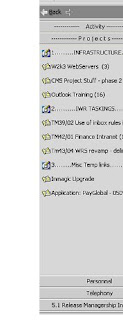
Groups… To Add a Group: Right mouse click on the grey area and “Add New Group”, you can call it whatever you like, but the order of that group will not change.
To Rename a Group: Right mouse click on the grey area and “Rename Group”.
Short Cuts…
These are links to your mapped folders in OUTLOOK or accessible files on a file server. To Add a new Shortcut: Right mouse click on the grey area and “OUTLOOK bar shortcut”, you can call it whatever you like and then point out to the appropriate OUTLOOK folder of File System Folder/File accordingly.
2. Current View Customisation with Mailboxes.
Mailbox views in OUTLOOK can be customised quite heavily. These can roughly be categorised accordingly;
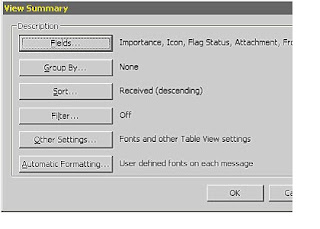
a. Fields
This view enables any OUTLOOK field to be viewed in your default view. The default view shows the “Frequently Used Fields”, to show all select “ALL Mail Fields.
Once you have all the fields chosen, the order can be changed by selecting the right hand column and using the Move up and Move down buttons.
b. Group By
This enables your inbox to be categorised by selecting up to three grouping categories.
Once chosen this creates a grey box at the top of your inbox with the appropriate grouping schema. This can easily be changed by dragging the appropriate box off this area or re categorising by dragging it down the hierarchy listing.
c. Sort Filter
This is the most basic of customisation and allows entries in the inbox to be sorted accordingly. A small triangle appears in the category heading line to signify that the column has been sorted.
To refine the sort, please click on the category title and this will resort and change the direction of the arrow accordingly (Up arrow - Ascending, Down Arrow - Descending).
d. Other Settings
This choice allows you to set the default font and size for your OUTLOOK Email box. You can also display gridlines around the cells to make viewing a lines’ entry slightly easier.
e. Automatic Formatting
This is by far the most powerful option. You can set a number of rules up to colour code items based on certain criteria.
E.g.: a rule can be entitled “read receipt requested” with the following options identified:
i. Font = 8 point Tahoma RED
ii. Condition / Advance tab = Field > All mail fields > “Receipt Requested” equals “YES”
3. Other customisation tips:
 Calendar:
1. By right mouse clicking on the grey date bar on the top of your calendar view and choosing “automatic formatting”, you are able to customise the default view quite extensively.
e.g.: To make all my personal entries with LUNCH in the subject = GREEN, the following condition can be applied
OUTLOOK can be customised extensively in order to fit into an individual’s work pattern. The following sections give a quick insight into the possible changes that can be made to make your experience as psychedelic as you’d like. Possible customisations are categorised as follows:
1. OUTLOOK Bar with Groups & shortcuts.
The OUTLOOK bar enables any OUTLOOK folder of file link to be added as a shortcut to this bar.In OUTLOOK if you chose View / Outlook Bar, a grey bar will appear on the left hand side of your screen.

Groups… To Add a Group: Right mouse click on the grey area and “Add New Group”, you can call it whatever you like, but the order of that group will not change.
To Rename a Group: Right mouse click on the grey area and “Rename Group”.
Short Cuts…
These are links to your mapped folders in OUTLOOK or accessible files on a file server. To Add a new Shortcut: Right mouse click on the grey area and “OUTLOOK bar shortcut”, you can call it whatever you like and then point out to the appropriate OUTLOOK folder of File System Folder/File accordingly.
2. Current View Customisation with Mailboxes.
Mailbox views in OUTLOOK can be customised quite heavily. These can roughly be categorised accordingly;

a. Fields
This view enables any OUTLOOK field to be viewed in your default view. The default view shows the “Frequently Used Fields”, to show all select “ALL Mail Fields.
Once you have all the fields chosen, the order can be changed by selecting the right hand column and using the Move up and Move down buttons.
b. Group By
This enables your inbox to be categorised by selecting up to three grouping categories.
Once chosen this creates a grey box at the top of your inbox with the appropriate grouping schema. This can easily be changed by dragging the appropriate box off this area or re categorising by dragging it down the hierarchy listing.
c. Sort Filter
This is the most basic of customisation and allows entries in the inbox to be sorted accordingly. A small triangle appears in the category heading line to signify that the column has been sorted.
To refine the sort, please click on the category title and this will resort and change the direction of the arrow accordingly (Up arrow - Ascending, Down Arrow - Descending).
d. Other Settings
This choice allows you to set the default font and size for your OUTLOOK Email box. You can also display gridlines around the cells to make viewing a lines’ entry slightly easier.
e. Automatic Formatting
This is by far the most powerful option. You can set a number of rules up to colour code items based on certain criteria.
E.g.: a rule can be entitled “read receipt requested” with the following options identified:
i. Font = 8 point Tahoma RED
ii. Condition / Advance tab = Field > All mail fields > “Receipt Requested” equals “YES”
3. Other customisation tips:
Calendar:1. By right mouse clicking on the grey date bar on the top of your calendar view and choosing “automatic formatting”, you are able to customise the default view quite extensively.
e.g.: To make all my personal entries with LUNCH in the subject = GREEN, the following condition can be applied
1. Name of the condition = personal
2. Colour for this condition = green
3. Press the “Condition button” / go to the advanced tab.
a. In the field combo box select “All mail fields” & subject
b. Condition = “contains”
c. Value = "LUNCH"
4. “Add to the list” (other additions can be added as well!)
5. finish by closing the dialog box by selecting Ok x2
2. Colour for this condition = green
3. Press the “Condition button” / go to the advanced tab.
a. In the field combo box select “All mail fields” & subject
b. Condition = “contains”
c. Value = "LUNCH"
4. “Add to the list” (other additions can be added as well!)
5. finish by closing the dialog box by selecting Ok x2
All 'LUNCH' entries should now be green!
let me know how it goes. It's a great tool and over the next few posts I'll elaborate on other Outlook tips & tricks.
Thursday, April 12, 2007
A light hearted look at new "work-place vocabulary"
- TESTICULATING - Waving your arms around and talking bollocks.
- BLAMESTORMING - Sitting around in a group, discussing why a deadline was missed or a project failed, and who was responsible.
- SEAGULL MANAGER - A manager who flies in, makes a lot of noise, craps on everything, and then leaves.
- ASSMOSIS - The process by which people seem to absorb success and advancement by sucking up to the boss rather than working hard.
- SALMON DAY - The experience of spending an entire day swimming upstream only to get screwed and die.
- CUBE FARM - An office filled with cubicles.
- PRAIRIE DOGGING - When someone yells or drops something loudly in a cube farm, and people's heads pop up over the walls to see what's going on.
- MOUSE POTATO - The on-line, wired generation's answer to the couch potato.
- SITCOMs - Single Income, Two Children, Oppressive Mortgage. What yuppies turn into when they have children and one of them stops working to stay home with the kids or start a "home business".
- STRESS PUPPY - A person who seems to thrive on being stressed out and whiny.
- PERCUSSIVE MAINTENANCE - The fine art of whacking the crap out of an electronic device to get it to work again.
- ADMINISPHERE - The rarefied organisational layers beginning just above the rank and file. Decisions that fall from the "adminisphere" are often profoundly inappropriate or irrelevant to the problems they were designed to solve. This is often affiliated with the dreaded "administrivia" needless paperwork and processes.
- 404 - Someone who's clueless. From the World Wide Web error message "404 Not Found", meaning that the requested document could not be located.
- OHNOSECOND - That minuscule fraction of time in which you realise that you've just made a BIG mistake (e.g. you've hit 'reply all')
Writing comments in Cards.. Use a Quote!
Ever short of that witty repost in a birthday card.... why not use the references below to search for the ideal congrats comment....
- http://www.junkfoodforthought.com/ From Jack Tourette, an extensive collection of quotations on a wide range of topics. Includes unusually good citations and brief biographical information for authors.
- http://webpages.ainet.com/gosner/quotationsarch/ Previously available only by Gopher (anyone remember that?) This is a collection of archived quotations. Some excellent topical collections are included.
- http://www.theotherpages.org/quote.html By Steve Spanoudis - Many (about 25,000) quotes, organized into 30 loosely-defined categories. Most with attributions. A bit hard to search for specifics, but one of the best pages out there for sheer number of good quotations.
- http://www.bartleby.com/100/ The classic quotations reference, brought online by Project Bartleby. It's the 10th Edition (c) 1919, but still an excellent resource. Searchable, too! (See our Books page for the current edition of Bartlett's)
- http://www.greatest-quotations.com Huge amount of quotations, easy searchable by subject, author, theme and at random. The design is minimal but the selection of quotes is impressive.
- http://www.quotearchive.com A nice collection of "Quotatons and Proverbs from Aeschylus to Zuppke." Formatted and organized well.
- http://www.quotegallery.com Gallery of more than 8000 famous quotations, categorized and searchable. Well designed and very accessible. Nicely done!
- http://www.quoteland.com/ This page's title modestly proclaims "Quotations on every topic, by every author, and in every fashion possible." It doesn't quite have *everything*, but there are lots of good quotations here. The author section is excellent. Includes a search engine and random quotations.
- http://www.quotations.co.uk/ A collection of more than 13500 quotations, with a good search engine. Their search engine found more hits for the word "cabbage" than any other I've tried. They also sell a reasonably-priced software package for finding and organizing quotations.
- http://www.aphids.com/quotes/index.shtml A large database of quotations. You can browse by subject or author, or search by keyword. Also includes a special collection of quotes on Love and Marriage (mostly positive ones, not cynical ones like you find at our site.)
- http://chatna.com/ A decent collection of quotations, indexed by author and subject. Includes an assortment of motivational, literary, political and humorous quotations.
- Http://www.useful-information.info/quotations/famous_quotes.html A collection of famous quotes organized by subject. Mainly positive or humorous quotes suitable to use for speeches, web sites, cards, and celebrations. Nice and readable.
- http://www.quotablequotes.net Searchable database of several thousand quotations, which you can also browse by topic.
- http://www.dhq.nu/wanderingmind/index.asp An extensive collection of quotations organized into topical categories. Many unique ones here and I've never seen a "Physiognomy" category anywhere else.
- http://www.artisanindustrials.com/quotes.html Inspirational quotes to elevate your human spirit.
- ftp://ftp.cs.ubc.ca/pub/local/quotes/ The quotations archive at the University of British Columbia - many collections from the net.
- http://spiritsong.com/quotes/
A large collection of quotes meant to be read like a book. There is no sort of organization or any search feature, but you can listen to a song by Cyndi Craven while you read the quotes (presuming you haven't sensibly turned off the audio on your browser.) - http://bellaonline.com/site/quotations Comprehensive collection of quotes on topics like - love, children, creativity, friendship, inspiration and more...
- http://www.deepbox.com
- http://www.myquotations.com/ Go beyond what the typical famous quotations websites allow! Add your own quotes, create your own quotations collection, and so much more at MyQuotations.com.
http://www.quotableonline.com Quotable Online is a collection of over 12000 quotations that is searchable by author, subject and source. - http://www.quotedb.com Over 2,400 sortable and rateable quotes from over 400 authors.
- http://www.quotegarden.com/ A decent collection of quotes organized by subject and occasion. I've found some unique ones there.
- http://www.top-quotations.com/ A reasonably large and diverse collection of quotations indexed by author and by subject.
Why am I doing this!
Over the course of my professional career I have come across a number of really useful time saving tips and tricks which I'd like to share with the wider community.
Ever since being shown the light, via a Personal Efficiency Program, run by my good friend and mentor, Russell Eastwood. (Here's to you Russ!) I've been interested in pushing the bounds of day to day activities.
The content within the blog are tried and tested by myself and have added greatly in my day to day activities. I have been requested to share my knowledge by other work colleagues, so in an effort to spread the word have decided to place them all in one location where everyone can benefit. Hopefully these are not the ramblings of a mad man.
I hope you'll find them useful; I'll be posting regular monthly updates so please drop on by :)
Ever since being shown the light, via a Personal Efficiency Program, run by my good friend and mentor, Russell Eastwood. (Here's to you Russ!) I've been interested in pushing the bounds of day to day activities.
The content within the blog are tried and tested by myself and have added greatly in my day to day activities. I have been requested to share my knowledge by other work colleagues, so in an effort to spread the word have decided to place them all in one location where everyone can benefit. Hopefully these are not the ramblings of a mad man.
I hope you'll find them useful; I'll be posting regular monthly updates so please drop on by :)
Subscribe to:
Posts (Atom)


 Digg/samejreltub
 Flickr/samejreltub
 Facebook/James Butler
 Linkedin/JamesFraserButler
 Twitter/samejreltub
 YouTube/samejreltub
 Del.icio.us/samejreltub
 GMail/James Butler
 Blog/James Butler